
Introduction

Managing social media across multiple platforms can quickly become stressful for any business owner. Handling Facebook Pages, Instagram profiles, messages, comments, scheduling posts, and running ads — all separately — wastes a lot of time.
To solve this problem, Meta created Meta Business Suite, an all-in-one platform designed to simplify social media management. This blog provides a complete, detailed guide to understanding and using Meta Business Suite effectively, whether you’re a beginner or a growing business.
What Is Meta Business Suite?
Meta Business Suite (formerly Facebook Business Suite) is a free tool that allows businesses to manage their:
- Facebook Page
- Instagram Business or Creator Account
- Messages
- Posts & Stories
- Insights & Analytics
- Ads
…from one central dashboard.
It is available on both desktop and as a mobile app.
Why Every Business Should Use Meta Business Suite

1. Unified Management
You no longer need to switch between apps. Everything — Pages, Instagram accounts, messages, ads — is in one place.
2. Easy Cross-Platform Publishing
Publish or schedule a post once, and it goes to both Facebook and Instagram.
3. Better Team Collaboration
You can add multiple team members and assign them specific roles like Admin, Editor, Advertiser, etc.
4. All Messages in One Inbox
Comments, DMs, and inquiries from both Facebook and Instagram appear together in a single inbox.
5. Content Planner
You can plan your content for days or months using the built-in calendar.
6. Powerful Insights & Analytics
Track reach, engagement, follower growth, and post performance — all in real time.
7. Built-In Ad Management
You can boost posts or run simple ad campaigns without leaving the Suite.
How to Set Up Meta Business Suite (Step-by-Step)
Step 1: Log in to Meta Business Suite
- Visit business.facebook.com or download the Meta Business Suite mobile app.
- Log in using your Facebook account.
Step 2: Create or Add Your Business
- If you don’t have a Business Account, the platform will prompt you to create one.
- Enter your business name and email.
Step 3: Add Your Facebook Page
- Go to Settings → Accounts → Pages.
- Add an existing page or create a new one.
Step 4: Connect Your Instagram Account
- Go to Settings → Accounts → Instagram Accounts.
- Make sure your Instagram is set to Business or Creator mode before connecting.
Step 5: Invite Team Members
- Under Business Settings → People, you can add team members.
- Assign them appropriate roles based on what they need to access.
Step 6: Finalize Page Settings
- Review page roles, messaging settings, notifications, and linked accounts.
Main Features of Meta Business Suite
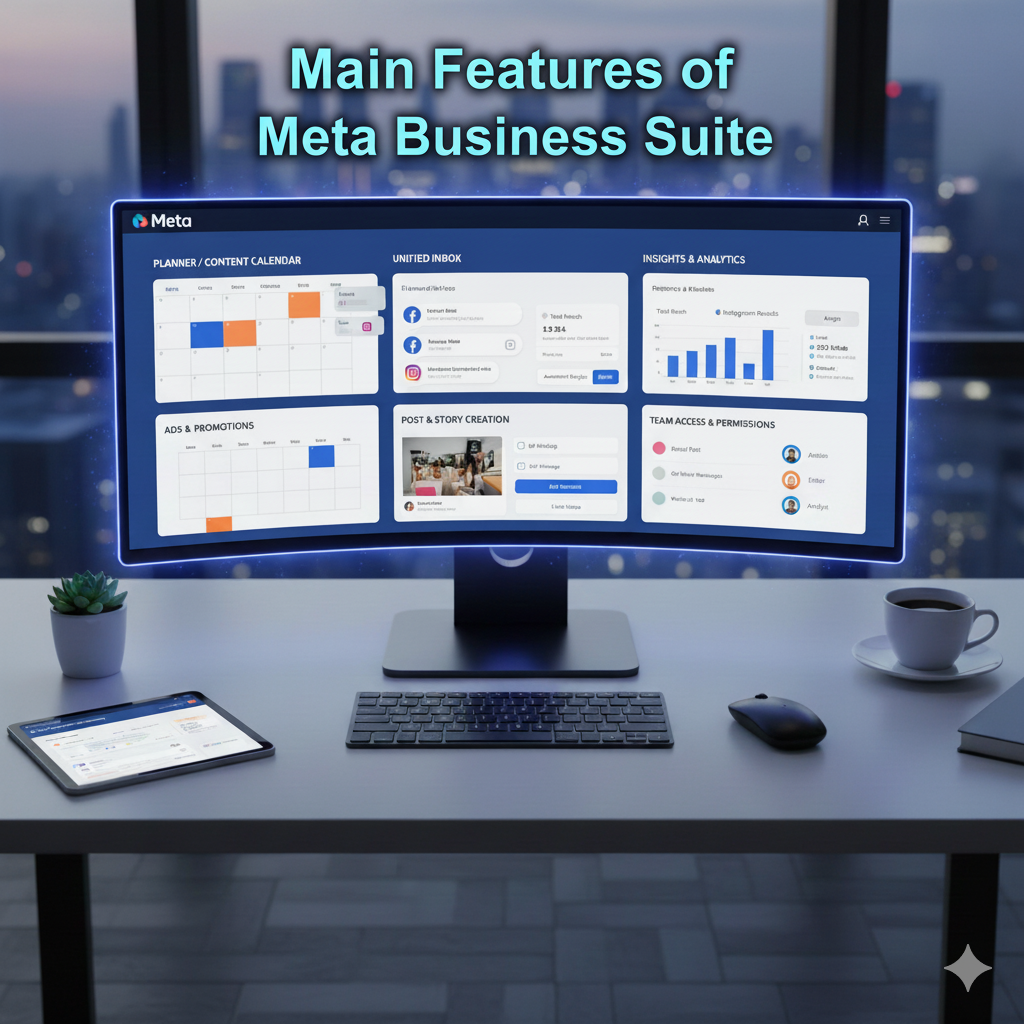
1. Planner / Content Calendar
The Planner is one of the most powerful features. You can:
- View your posts in weekly or monthly view
- Schedule posts for Facebook and Instagram
- Create Stories
- Save drafts
- Plan your entire monthly content strategy
This helps businesses stay consistent without posting manually every day.
2. Unified Inbox
Meta Business Suite has a single inbox for:
- Facebook comments
- Facebook messages
- Instagram comments
- Instagram DMs
You can also:
- Set automated replies
- Create instant “Away Messages”
- Save replies for frequent questions
- Assign conversations to team members
This ensures fast and professional communication with your customers.
3. Insights and Analytics
The Insights tab gives detailed analytics like:
- Total reach
- Post engagement
- Follower growth
- Best-performing posts
- What time your audience is active
- Comparison of Facebook vs Instagram results
This helps businesses understand what content works and how to improve their strategy.
4. Post & Story Creation
From one place, you can create:
- Facebook posts
- Instagram posts
- Stories
- Reels (if available in your region)
You can also:
- Edit images
- Add hashtags
- Preview how posts will look
- Choose where to publish (FB only, IG only, or both)
5. Ads and Promotions
You can run simple ads directly inside the Meta Business Suite. These include:
- Boosted posts
- Get more messages ads
- Website visit ads
- Page Like ads
This is perfect for beginners who want quick promotions without using the full Ads Manager.
6. Team Access and Permissions
You can assign roles such as:
- Admin
- Editor
- Analyst
- Advertiser
This keeps your assets secure and ensures only the right people have access to sensitive areas like payments and ads.
Best Practices for Using Meta Business Suite
- Plan posts at least one week in advance using the Planner
- Use Insights to track what’s working
- Reply quickly to messages — it increases trust
- Post consistently across both platforms
- Use auto-replies to handle common questions faster
- Assign roles carefully to protect your business assets
Common Mistakes to Avoid
- Not connecting your Instagram properly
- Giving admin access to too many people
- Publishing the same caption on both platforms without tweaking
- Ignoring Insights
- Not setting up two-factor authentication
- Posting without a content strategy
Conclusion
Meta Business Suite brings all your Facebook and Instagram tools together, making social media management faster, easier, and more organised. With features like a unified inbox, content planner, insights, and simple ad tools, it helps businesses stay consistent and respond to customers quickly. Instead of switching between multiple apps, everything you need is in one place.
By using Meta Business Suite regularly, you can save time, understand your audience better, and create a more professional online presence. Whether you’re a small business or growing brand, it gives you the control and clarity you need to manage your social media effectively.